Accessing your Social Security System (SSS) account online is essential for managing your contributions, applying for loans, and tracking benefit claims in real-time. As the SSS continues its digital-first transition into 2026, the My.SSS portal has become the primary hub for all member transactions.
This guide provides the official direct links and step-by-step instructions to ensure a secure SSS login every time.
Table of Contents
Quick Link: Official SSS Login Portal
For the fastest access, use the official member portal link:
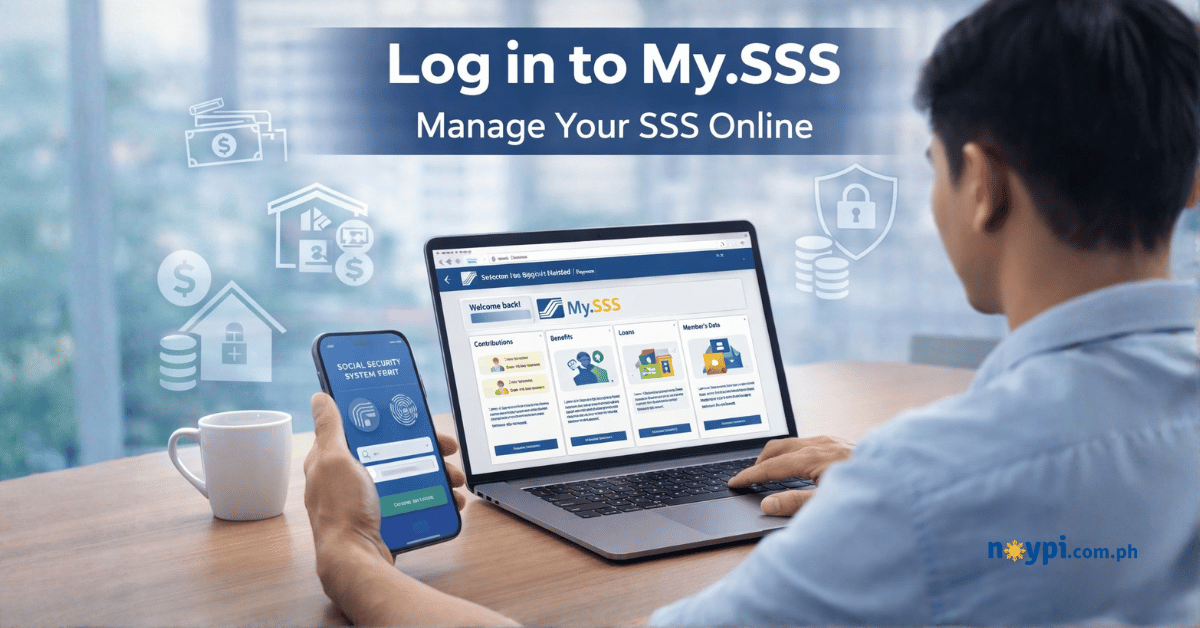
Step-by-Step Guide: How to Log In to My.SSS
To access your account via a web browser (desktop or mobile), follow these steps:
- Visit the Official Website: Go to https://www.sss.gov.ph and click “Login to My.SSS”.
- Enter Your Credentials: Type in your registered User ID and Password. Note that passwords are case-sensitive.
- Complete the Captcha: Tick the “I’m not a robot” checkbox and solve any security images if prompted.
- Two-Factor Authentication (If Enabled): If you have activated Time-based One-Time Password (TOTP), enter the 6-digit code sent to your registered mobile number via SSS OTP. Note that the code is valid for 5 minutes only. Once it expires, you must request a new OTP.
- Access Dashboard: Click “Sign In” to be directed to your member dashboard.
Logging In via the SSS Mobile App
For members using a smartphone, the MySSS Mobile App offers a more streamlined experience:
- Biometric Login: You can enable fingerprint or facial recognition for faster access on compatible iOS and Android devices.
- Security: The app includes a “Timeout when idle” feature that automatically logs you out after a period of inactivity to protect your data.
Troubleshooting Common SSS Login Errors
Technical glitches or forgotten credentials can occasionally block your access. Here are the most common errors and their 2026 solutions:
| Error / Issue | Possible Cause | Solution |
| “Account Locked” | Too many failed login attempts. | Wait 24 hours for the system to auto-unlock, or use the “Forgot Password” link to reset. |
| OTP Not Received | Wrong mobile number on file or poor network signal. | Ensure your mobile number on file is updated and you have a strong network signal. |
| “No Record Found” | Mismatch between login inputs and SSS master records. | Double-check your SS Number format. Ensure your User ID exactly matches what was provided in your registration email. |
| Expired Activation Link | Clicking the link after the 30-day window. | You must restart the registration process if you failed to set your password within 30 days of receiving the email. |
How to Recover Your SSS User ID or Password
If you have forgotten your login credentials, do not attempt to create a new account. Instead, follow the recovery process:
- Navigate to https://member.sss.gov.ph and click “Forgot Password?”.
- Select your preferred recovery method: Multi-factor Authentication or Security Questions.
- Enter your CRN or SS Number and follow the on-screen prompts.
- Check your registered email for a password reset link.
- Nominate a new password (must be 8-20 alphanumeric characters, starting with an alphabet, and containing no special characters).
Pro Tip: If your registered email or mobile number is no longer active, you must visit an SSS branch with a valid ID to request a manual update of your contact information before you can recover your account.
Security Best Practices
- Enable TOTP: Protect your account from hackers by setting up a Time-based One-Time Password via the “Setup TOTP” link in your dashboard.
- Update Contact Info: Regularly check the “Contact Information” section under the Member Information / Member Details menu to ensure your email and mobile number are current.
- Use Official Channels: Only log in through
www.sss.gov.phor the official app. SSS will never ask for your password via phone call or social media.
For further assistance, you may contact the SSS Hotline at 1455 or email [email protected].